

Table of Content
- Why "Saved" on Instagram Is Not the Same as Offline
- Instagram's Built-In Download Button
- Collections: Not Offline, But Do This Anyway
- Saving Clean Copies With Indown.io
- Screen Recording: The Blunt Instrument
- All Four Methods, Side by Side
- Keeping Your Downloads From Becoming a New Mess
- A Quick, Honest Word on Respecting Creators
- Final Verdict
My saved folder on Instagram holds somewhere north of 400 reels. Recipes I swore I would cook, mobility drills from a physio I follow, a pasta-shaping tutorial I have rewatched maybe twenty times. And until last year, I could not open a single one of them without a signal. I found that out on a flight to Lisbon, phone in airplane mode, staring at a grey spinner where my packing checklist reel was supposed to be.
Here is the part nobody explains up front: saving a reel bookmarks it on Instagram's servers. It does not put the video on your phone. Once that finally clicked, I spent two weeks testing every realistic way to get reels onto my device properly. The app's own download button. A browser tool called Indown.io. Instagram Collections. Plain old screen recording. This guide covers what actually worked, where each method falls short, and the small details most write-ups skip, like why some downloads come out silent and why the download button vanishes on certain reels entirely.
Why "Saved" on Instagram Is Not the Same as Offline
When you tap the bookmark icon under a reel, Instagram stores a reference to that video against your account. The file itself never leaves Meta's servers. Every time you reopen a saved reel, your phone streams it again from scratch, and that has three consequences worth knowing.
• You need a connection every single time. No signal, no reel, regardless of how many times you have watched it before.
• Saved reels can disappear. If the creator deletes the post or flips their account to private, it drops out of your saved tab with zero warning. It has happened to me twice with recipe accounts.
• Repeat watches burn data. A reel you rewatch ten times streams ten times. That adds up fast on a limited mobile plan.
Switch on airplane mode and open anything in your saved tab. If it plays, you have a real copy on your phone. If it spins, you have a bookmark. Every method below except Collections passes this test.
METHOD 1 · WORKS OFFLINE
Instagram's Built-In Download Button
Instagram quietly became its own best downloader when it rolled out reel downloads to everyone worldwide in late 2023. The option sits inside the share menu, and for most everyday saving this is where you should start, because the file lands straight in your camera roll with nothing to install.
How to do it
1. Open the reel inside the Instagram app.
2. Tap the share icon, the little paper plane under the video.
3. Tap Download in the row of options that appears.
4. Wait for the confirmation, then find the video in your Photos app or Gallery.
Four taps, done. Now for the conditions attached, because there are several and they explain almost every "why won't this work" moment you will ever hit.
The fine print
• Public accounts only. Reels from private accounts never show the download option, full stop.
• Creators can switch it off. There is a toggle called "Allow people to download your Reels" under the Reels and Remix privacy settings. If the button is missing on a public reel, this toggle is usually the reason.
• Downloads carry a watermark. Every file comes stamped with the Instagram logo and the creator's handle, much like TikTok downloads. Your own reels are the exception and save clean.
• Licensed music gets stripped. If a reel uses a commercial track, the downloaded file arrives completely silent. Only reels built on original audio keep their sound.
That last rule bit me constantly. In my testing, roughly a third of the trending reels I tried came down as silent clips because they used popular songs. Voiceover content, cooking videos with natural sound and talking-head clips saved perfectly almost every time. So the built-in button is brilliant for tutorials and useless for anything soundtracked by the charts.
METHOD 2 · STREAMS ONLY
Collections: Not Offline, But Do This Anyway
I nearly left Collections out of this guide, then realized that would be a mistake, because the biggest problem with saving reels is not downloading them. It is finding them again three weeks later. Collections fixes that, and it pairs beautifully with the two download methods on either side of it.
How to do it
1. Press and hold the bookmark icon under any reel.
2. Pick an existing collection or tap the plus to create a new one.
3. Name collections by intent: "Recipes to try", "Gym", "Trip: Lisbon".
4. Find everything later under your profile menu, in Saved.
My system now works in two stages. Collections is the sorting tray where everything interesting lands during a scroll. Then once a week I go through one collection and properly download the handful of reels I genuinely want to keep, using Method 1 or Method 3. The rest stay as bookmarks, and honestly, most of them deserve nothing more.
METHOD 3 · WORKS OFFLINE
Saving Clean Copies With Indown.io
The built-in button has three gaps: the watermark, the silent downloads, and the fact that it only exists inside the mobile app. A browser-based downloader closes all three, and after trying a handful of them, Indown.io is the one that stayed in my routine. It runs entirely in the browser, on a phone or a laptop, and asks for nothing beyond a link.

How to do it
1. On the reel, tap the share icon and choose Copy link.
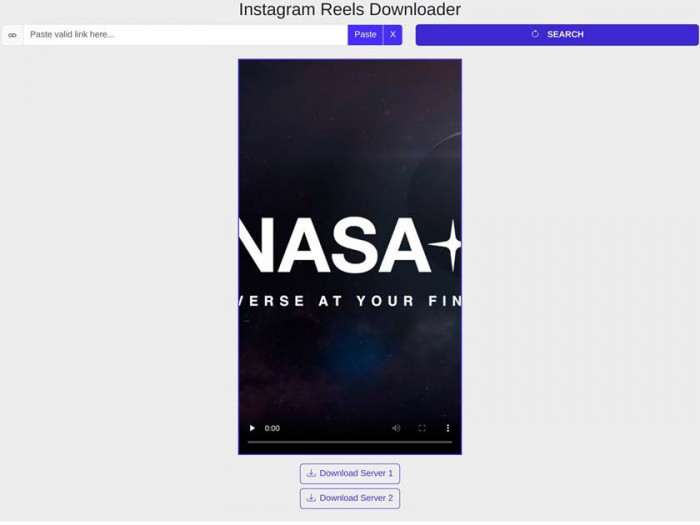
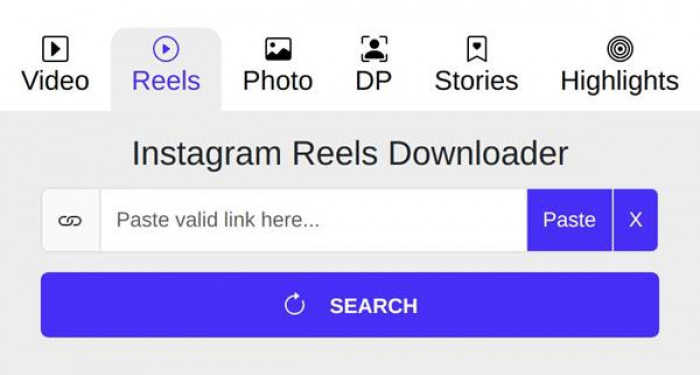
2. Open indown.io in any browser. No account, no login, no install.
3. Paste the link into the box and hit the download button.
4. Save the MP4. It lands in your Downloads folder, ready to move to an album.

The results explain why this became my second tool rather than a backup. Files come down without any watermark, at whatever quality the creator originally uploaded, and the audio stays exactly as posted, licensed track or not, because you are saving the reel as it exists on the feed. It also handles photos, carousels and Stories through the same paste box, which turned out to be more useful than I expected. I broke down each of those content types with screenshots in my full Indown.io review if you want the longer version.
WHAT WORKS • No watermark on saved files • Audio arrives intact, as posted • Works on desktop, not just the app • Also grabs photos, Stories and carousels • Never asks for your Instagram login | WATCH FOR • Public posts only, private accounts stay off limits • Downloader sites run ads, so click the actual download button and ignore anything pushing an app install • Files arrive with random string names, rename them if you are building a library • You depend on a third-party site staying up |
One habit worth adopting from day one: rename the file the moment it downloads. Something like "pasta-shapes-tutorial" beats a 20-character jumble when you are digging through a folder six months from now.
METHOD 4 · WORKS OFFLINE
Screen Recording: The Blunt Instrument
Every phone made in the last several years can record its own screen, which makes this the method that technically always works. It is also the method I use least, and once you see the trade-offs you will understand why it sits at the bottom of the list rather than the top.
On iPhone
1. Go to Settings, Control Center and add Screen Recording if it is not already there.
2. Open the reel, swipe into Control Center and tap the record button.
3. After the three-second countdown, play the reel start to finish.
4. Tap the red indicator to stop. The clip lands in Photos, ready to trim.
On Android
1. Swipe down twice to open Quick Settings and tap Screen record.
2. Choose Media sounds so you capture the reel's audio rather than your room.
3. Play the reel through, then stop the recording from the notification shade.
4. Trim the ends in your gallery's built-in editor.
Why it stays a last resort
• You capture the whole interface. Likes, captions, comment button, everything. Expect to crop and trim every single clip.
• Quality tops out at your screen. A recording can never look better than your display resolution, and it usually looks a touch worse.
• Interruptions get baked in. One notification banner mid-recording and you are starting over.
• It costs real time. One reel recorded is one reel watched in full, which makes bulk saving painful.
Where it earns its keep: content you have permission to keep when nothing else cooperates, and grabbing a clip on a device where you would rather not open a browser at all. For everything else, Methods 1 and 3 get you there faster and cleaner.
All Four Methods, Side by Side
Here is the whole guide compressed into one table. I come back to this logic every time I save something, and after a week it becomes automatic.
| Method | Offline file | Watermark | Audio | Effort | Best for |
|---|---|---|---|---|---|
| In-app Download | Yes | Yes, with handle | Stripped on licensed tracks | Very low | Quick keeps on your phone |
| Collections | No, streams only | None | Plays online only | Lowest | Sorting ideas by topic |
| Indown.io | Yes | No | Intact, as posted | Low | Clean files and desktop saves |
| Screen recording | Yes | No, but UI shows | Captured from playback | High | Last resort situations |
Keeping Your Downloads From Becoming a New Mess
Downloading reels solves the offline problem and immediately creates a librarian problem. A month in, I had 60 unnamed videos scattered through my camera roll and could not find the one I wanted. These four habits fixed it.
• Make albums before you need them. Recipes, Workouts, Trip planning, whatever your saved tab already tells you about yourself. A download you cannot find is a download you lost.
• Run a monthly cull. A typical 60-second reel weighs somewhere between 8 and 15 MB at 1080p. A couple hundred of them quietly eat over a gigabyte, so delete the ones you never rewatched.
• Rename browser downloads on the spot. Creator name plus topic takes five seconds and saves ten minutes later. This matters most for Indown.io files, which arrive with random string names.
• Decide on cloud backup once. With Google Photos or iCloud backup on, your reel library survives a lost phone. With it off, the files stay local and cost you nothing in cloud storage. Pick deliberately.
A Quick, Honest Word on Respecting Creators
Downloading a public reel to rewatch it offline sits in roughly the same territory as saving a webpage to read later: a personal copy, for personal viewing. Reposting that file somewhere is an entirely different conversation, and it is where people get themselves into trouble. These are the rules I hold myself to, and they have kept every interaction with creators friendly.
• Saved files stay on my phone unless the creator has said otherwise. Offline viewing is the goal, not redistribution.
• Ask before reposting. A short DM works, and most creators say yes when you credit them properly.
• Private accounts are off the table. No legitimate tool can reach them, and the shady sites claiming they can are usually after your login.
• A disabled download button means something. If a creator switched downloads off, that choice deserves the same respect as a locked door.
None of this is legal advice. It is simply the standard that keeps your conscience clear and your DMs pleasant.
Final Verdict
What I Actually Do Now
After two weeks of deliberate testing and several months of living with the results, my routine settled quickly. The in-app Download button handles the everyday stuff, the reels I want on my camera roll in four taps while standing in a supermarket queue. When that button is missing, when a download comes down silent, or when I am at my laptop building out a recipe folder, I switch to Indown.io, and between the two of them that covers about 95 percent of everything I save. Collections became my sorting tray rather than my archive, and screen recording sits in honorable retirement for the rare clip nothing else will touch.
The Lisbon situation has not repeated itself. Last month I got through a full folder of hiking reels somewhere over the Atlantic, airplane mode on, not a spinner in sight. If you take one action from this whole guide, run the airplane mode test on your own saved tab tonight, because the result convinces people faster than any article can. And when you are ready to go deeper on the tool side, the complete Indown.io walkthrough is the natural next read.