

Table of Content
- What Auto Sync Truly Means
- Why Most Generators Cannot Hear Your Song
- Loudness Versus Stems: The Difference That Decides Everything
- How to Judge a Sync Before You Commit a Whole Track
- Preparing Your Track So the Sync Lands
- Mapping Stems to What You See
- Where Auto Sync Still Needs a Human
- Exporting for the Platform You’re Releasing On
- Frequently Asked Questions
- Conclusion
You upload a finished track, hit Generate, and the preview feels perfect—until bar four, when every cut slips half a beat late and the spell breaks.
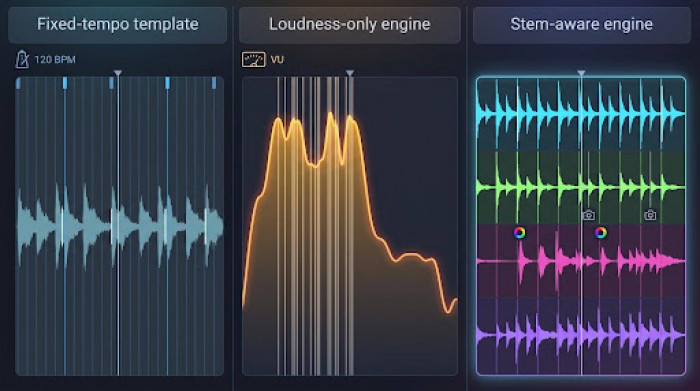
That lag exists because “auto sync” covers three distinct engines: one locked to a fixed tempo grid, one chasing volume spikes, and one that truly listens to your stems.
This guide unpacks those engines so you can pick an AI music video generator with auto sync that keeps every hit on the downbeat—no manual slicing, no second-guessing.
What Auto Sync Truly Means
“Auto sync” looks like a single magic button, yet three distinct engines hide behind the label. Spotting which one a tool uses saves hours of frustration and lets you judge beat-matching on sight.
The Fixed-Tempo Template
A fixed-tempo template does not analyze your song. It drops the track onto a pre-cut video grid locked to 120 or 128 BPM. If your tempo differs, every cut drifts farther from the downbeat, so the visuals stay on a metronome that is not yours.
The Loudness-Reactive Engine
A loudness follower reads one amplitude curve and fires edits whenever volume spikes. That approach works on sparse electronic beats, but feed it a dense rock mix and everything is loud at once. The screen flashes nonstop yet rarely lands on the snare or vocal entrance you care about.
The Stem-Aware Engine
This musical approach splits your upload into stems—drums, bass, vocals, melody and more—before rendering. Cuts can snap to drum transients, color shifts can follow the vocal, and camera moves can ride the bass line. Because each element drives its own lane, the sync feels deliberate rather than lucky.
We will lean on this stem-aware model throughout the guide. Once you hear the difference, anything less feels like guesswork. For true audio-reactive, beat-matched visuals, it is the only engine that listens.
Why Most Generators Cannot Hear Your Song
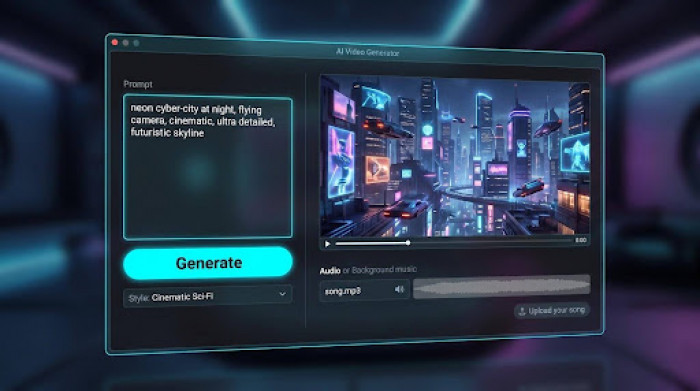
Most text-to-video models were built to convert prompts like “neon cyber-city” into silent footage; they never analyze the waveform you upload. In a July 2026 comparison of AI video tools by Barchart.com, general-purpose models often failed to follow song structure, lacking the beat-level analysis needed for real music videos.
Drop your track into one of these tools and it plays in the background while the visuals run on their own clock. You can nudge a start point or trim a clip, but each beat match still depends on you, mouse in hand, cutting by feel. That is the manual labor auto sync promised to remove.
Copywriting adds to the confusion. “Upload your song” sounds similar to “reacts to your song,” yet only the second phrase implies genuine signal processing. If the demo never shows stems, transient markers, or any hint of an audio timeline, assume the engine is deaf.
Spotting that mismatch early lets you skip attractive mood boards and focus on generators that listen, analyze, and lock to the groove you worked so hard to create.
Loudness Versus Stems: The Difference That Decides Everything
Most tools that promise “audio-reactive” visuals still track one signal: the overall loudness curve. A stem-aware engine does something fundamentally different, and Neural Frames’ AI music video generator shows what that looks like in practice. On upload it splits the track into eight discrete waveforms—drums, bass, vocals, melody and the rest—and scrolls them as separate lanes, so you can see in real time that each element was detected. From there you route any stem to whatever you want it to drive: cuts, lens moves, color shifts. That single design choice doubles as a benchmark when you audition any other platform—if you cannot see the stems, the engine is almost certainly following loudness.

Why Loudness-Only Fails
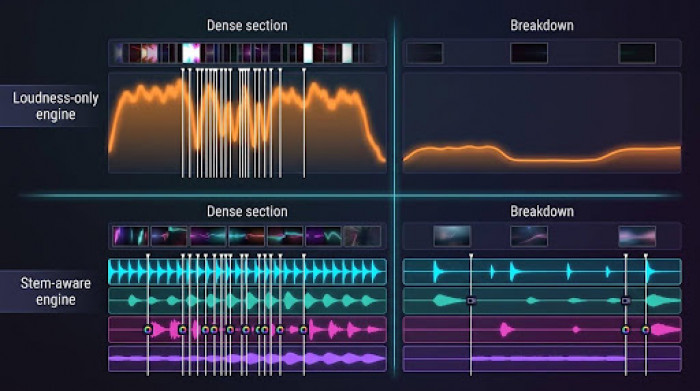
Picture a dense dance mix. Kick, snare, synth stab, and vocal peak within the same half-second. A loudness follower identifies only one fact: the track is loud. It pushes every parameter—flashes, cuts, and camera shakes—until the screen feels like a strobe. When the breakdown arrives, RMS level drops 6–8 dB below the chorus average, and the visuals collapse into near-stillness, according to audio-software maker iZotope.
Because the engine tracks just one amplitude envelope, it cannot distinguish a razor-sharp transient from a sustained pad. Edits drift or cluster at random loud points, so what viewers see rarely lines up with what they feel.
Why Stem Awareness Wins
Split the track into stems—drums, bass, vocals, and melody—and each lane becomes its own timing signal. Cuts can land exactly on drum transients, color shifts can follow the vocal, and camera moves can ride the bass riff. The result is deliberate, not random: a multi-track conversation with your song instead of a single-line volume graph.
How to Judge a Sync Before You Commit a Whole Track
You’d never sign off on a master after one pass; video sync deserves the same care. A five-minute upload renders quickly. Preview a 30-second slice to learn whether the engine hears your track.
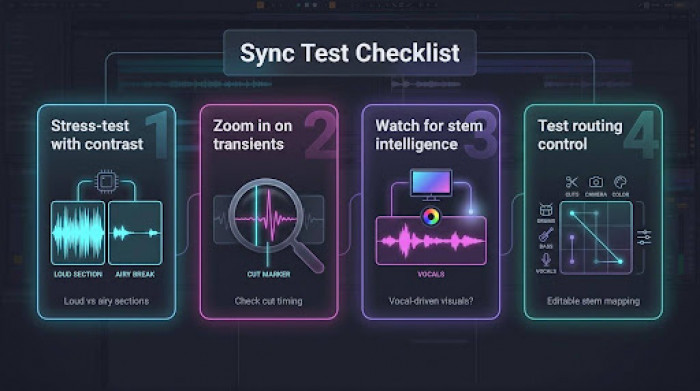
- Stress-test with contrast. Feed the generator one loud, beat-driven section and one airy break. Weak engines pass the first (everything is loud, so any cut feels “close enough”) but collapse on the second, where space reveals every late hit.
- Zoom in on transients. Play the render beside your DAW. Does a cut land exactly when the snare spikes, or a hair after? Humans can detect audio-visual offsets smaller than 50 milliseconds; if it feels off, it is off.
- Watch for stem intelligence. When the vocal enters, do visuals shift color or focus? If nothing changes, the tool is following global volume, not individual stems.
- Test routing control. Can you assign which stem drives each parameter, or are you locked into a default? Editable routing separates a creative tool from a slot machine.
Spend ten minutes on these checks and you’ll avoid rendering an entire video only to discard it for sloppy timing.
Preparing Your Track So the Sync Lands
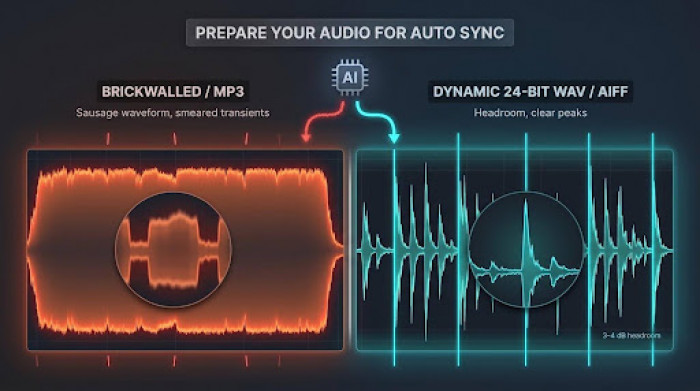
Great visuals start with a clean audio handoff. Export your mix as a 24-bit WAV or AIFF, never a streaming MP3. MP3 compression cuts file size by roughly 80 to 90 percent by discarding data, which can smear a snare transient and turn a crisp hit into a blur, according to Sound on Sound magazine. Those transients are the landmarks a sync engine locks onto.
If you mastered two versions—one slammed for loudness and another with a few decibels of headroom—feed the gentler file. A brick-walled waveform looks like a sausage; the peaks and valleys an algorithm needs disappear. Leaving even 3–4 dB of headroom helps the engine detect kicks and snares accurately, notes iZotope.
Trim silence at the top. The first beat should strike at 0:00:00 so every cut lines up from bar one. If you need a 30-second teaser, bounce that exact excerpt instead of uploading the full song; shorter renders preview faster, and they keep you focused.
Mapping Stems to What You See
The Mental Model: What Versus When
Think of the generation prompt as the set designer. It decides what appears onstage. Your stems serve as the stage manager and decide when each prop moves. Keep those roles separate and the workflow clicks.
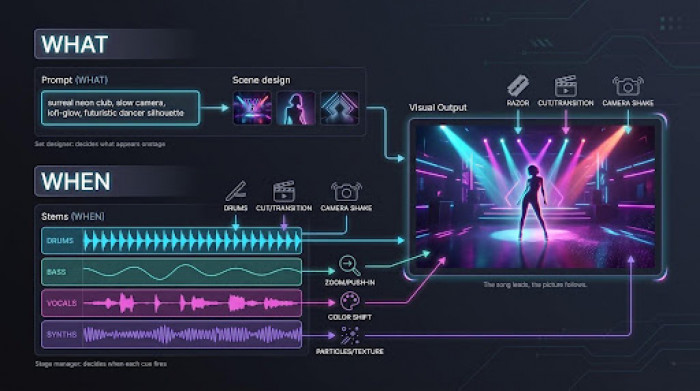
A stem-aware engine such as Neural Frames splits your upload into eight distinct stems—drums, bass, vocals, melody and the rest. Each lane becomes a timing signal you can route anywhere. Want every snare to nudge the camera? Point the drum stem there. Prefer the vocal to shift color? Wire the vocal lane to the hue wheel.
Once you treat stems as on-off switches instead of background audio, you stop chasing random moments and start conducting deliberate cues. The song leads, the picture follows, and viewers feel the connection instantly.
Where Auto Sync Still Needs a Human
Auto sync gets you 90 percent of the way; the final 10 percent is art, and no algorithm knows your intent.
Punch up the moments that matter. Dial in the drop, the first eight bars, and the outro. If those three land, listeners forgive tiny wobbles elsewhere.
Keyframe the spike. At the exact bar where energy peaks, add one keyframe, widen the camera, or brighten the palette to make the chorus explode on cue.
Anchor sparse sections. Engines can drift when the music goes quiet. Drop a manual cut one beat before the groove returns to snap everything back in phase.
Stop when it feels right. Watch the full run once, distraction-free. If nothing jumps out, export. Tinkering past that point only steals time from your next track.
Exporting for the Platform You’re Releasing On
Render once, repurpose everywhere. A crisp 4K master (3840 × 2160, 30 fps) gives you room to crop and re-encode without losing detail. YouTube recommends 35–45 Mbps for standard-frame-rate 4K uploads, according to its official guidelines. Starting with a clean source pays off in playback quality and search ranking.
Vertical feeds flip those priorities. Shorts, Reels, and TikTok care more about aspect ratio (9:16) than raw resolution. Set a safe zone before generation so the subject stays centered; cropping later risks cutting heads or text.
Spotify Canvas is stricter: 3–8 seconds, 9:16, 720–1080 pixels tall, MP4 or JPG, per Spotify for Artists. Anything outside that spec fails to upload and forces a re-render. Loop a hook or a stand-alone motif; avoid cramming a full storyline into eight seconds. It is worth noting that the same platform has been tightening its rules around AI-generated content, so read the current terms before you upload.
Before you hit “Publish,” double-check two things:
The export is watermark-free, cleared for commercial use, and compliant with rights.
The file still lands on the beat after the platform compresses it. One quick play-through in the mobile app catches surprises before your fans do.
Frequently Asked Questions
Does auto sync work in any genre?
It depends entirely on the engine. A loudness follower struggles most with dense mixes, where everything peaks at once, and with sparse or ambient passages, where there is little for it to react to. A stem-aware engine handles both far better, because it tracks the drums independently of everything else instead of reading a single volume curve.
Do I need video editing experience?
No. The workflow above is to upload the track, route stems to visual behaviors, generate a first pass, then refine three or four moments. That last step rewards a little instinct for pacing, but none of it requires timeline editing skills.
Will the visuals stay in time for a whole song?
Mostly, though expect some drift in quiet passages where the engine has fewer transients to lock onto. That is exactly why the refinement pass targets the drop, the opening bars, and the outro rather than the full runtime.
Can I use a song I did not write?
Only if you have cleared it. A music video inherits every rights problem in the audio, and a monetized upload is where that surfaces. Samples, features, and interpolations all need clearance before release.
Can I make a vertical version for Shorts and Reels?
Yes, but plan it before you generate rather than cropping afterwards. Decide the 9:16 safe zone up front so the subject stays centered, then use the 4K master to cut down to every other format you need.
Conclusion
Choosing a generator with true stem awareness—and preparing your track so the algorithm can hear it—turns auto sync from a coin-flip promise into a dependable workflow. Invest a few minutes in the checks above, and every cut will land exactly where the groove demands.