

A WhatsApp group with 50 members does not need 50 separate replies to decide on a meeting date, event venue, or shared activity. A single poll can collect those preferences, display the results, and keep the decision in one place. WhatsApp also supports voting deadlines, hidden voter names, and multiple-answer selection, giving users more control over the process.
This guide explains how to create a poll on WhatsApp across different devices and conversations, manage voting, and get results that are actually useful.
What Is a WhatsApp Poll?
A WhatsApp poll is an interactive message that lets participants vote on a question using predefined answer options. Instead of collecting separate text replies, WhatsApp records selections and displays the vote counts within the conversation.
Polls are available in individual chats, groups, Communities, and Channels, although certain features differ between them.
Each poll supports up to 12 answer options, with a 255-character limit for questions and 100 characters per option. Participants can select one or multiple answers depending on the creator's settings.
WhatsApp polls also support real-time results, voter privacy controls, and scheduled closing times. These features make them useful for scheduling, gathering preferences, and making decisions that require input from several people.
However, a poll identifies what participants selected, not necessarily why they selected it. The question, available choices, and number of respondents all influence how useful the result becomes.
How to Create a Poll on WhatsApp
Creating a poll takes a few steps, but the attachment menu differs between Android, iPhone, and desktop. The voting settings should be reviewed before publishing because not every option can be changed afterward.
How to Create a WhatsApp Poll on Android
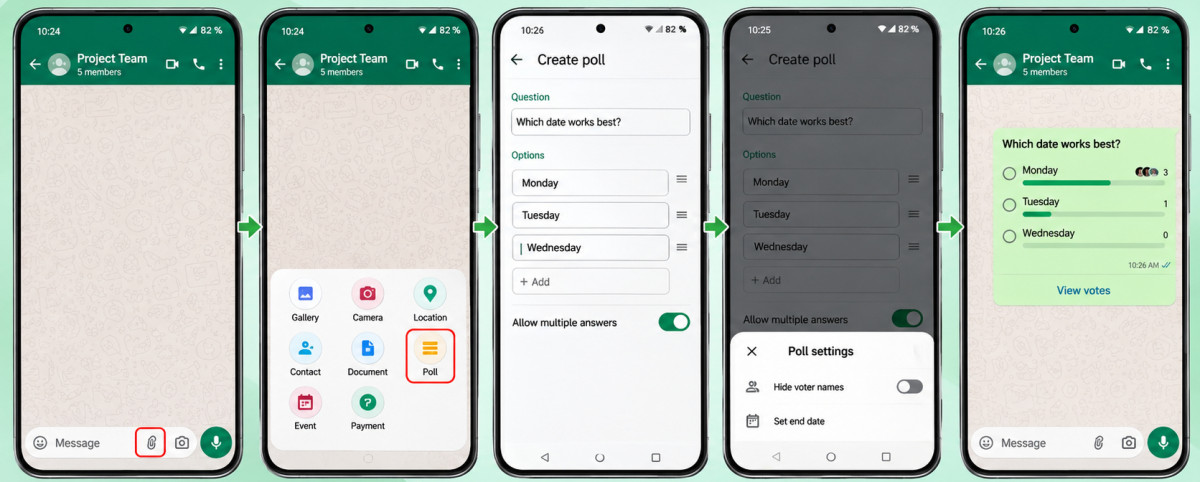
1. Open WhatsApp: Launch the app and select the personal or group conversation where you want the poll to appear.
2. Access the attachment menu: Tap the paperclip icon beside the message field and select Poll.
3. Enter your question: Write a clear question in the Question field. Keep it focused on one decision.
4. Add the options: Enter at least two choices. You can add up to 12 and rearrange their order using the drag handles.
5. Configure voting: Turn off Allow multiple answers when each participant should select only one option.
6. Adjust additional settings: Choose whether to hide voter names and set a voting deadline, where supported.
7. Publish the poll: Tap Send. Participants can begin voting directly within the conversation.
The poll appears as a message displaying the question, available answers, and voting information.
How to Create a WhatsApp Poll on iPhone
1. Open WhatsApp and enter the conversation where the poll should be shared.
2. Tap the + icon beside the message field.
3. Select Poll from the available attachment options.
4. Enter your question and add the answer choices.
5. Arrange the options in the preferred order.
6. Review multiple-answer voting, privacy, and deadline settings.
7. Tap Send to publish the poll.
The main interface difference is the attachment menu: Android uses a paperclip icon, while iPhone uses a plus icon.
How to Create a Poll on WhatsApp Web or Desktop
1. Open web.whatsapp.com or launch the WhatsApp desktop application.
2. Select the conversation where you want to create a poll.
3. Click the + or attachment icon beside the message field.
4. Select Poll and enter your question.
5. Add the answer options and rearrange them where necessary.
6. Configure the available voting settings.
7. Click Send to publish the poll.
Polls created on a computer synchronize across supported devices. Participants can vote from their phones, and results appear in the same conversation.
The placement of some settings may vary by app version.
Understanding WhatsApp Poll Settings
The settings determine how responses are collected, whether voter identities are visible, and when participation ends. WhatsApp expanded its group polling features in August 2026, introducing voting deadlines, hidden voter names, and a short question-editing window.
| Setting | Function | Suitable use |
| Allow multiple answers | Lets users choose several options | Availability and multiple preferences |
| Hide voter names | Conceals individual voting choices | Personal opinions and sensitive topics |
| Set an end time | Automatically locks voting | Meetings and time-sensitive decisions |
| Reorder options | Changes the order of choices | Dates and organized selections |
Single-answer voting is appropriate when participants must choose one preferred option. WhatsApp enables multiple answers by default, so creators should turn this setting off when they need one selection per person.
Multiple-answer voting works better when several choices can be acceptable. A scheduling poll asking members to identify every available day should generally permit multiple selections.
The Hide voter names setting prevents people, including the creator, from seeing who selected particular answers. Vote counts remain visible.
The Set an end time option automatically closes voting at the chosen deadline. This prevents late selections from changing the results after arrangements have been finalized.
These settings should match the purpose of the question rather than being left at their defaults.
How to Create a Poll in a WhatsApp Group
Group polls follow the same creation process as individual-chat polls. Members can generally create polls when group messaging permissions allow them to send messages.
To create one:
1. Open the WhatsApp group where responses are needed.
2. Tap the paperclip icon on Android or the + icon on iPhone.
3. Select Poll and enter the question.
4. Add the answer options and configure single or multiple voting.
5. Set an end time and privacy controls if required.
6. Send the poll to the group.
In administrator-only groups, ordinary members may not have permission to publish polls.
For scheduling, the wording should identify whether members are selecting a preference or indicating availability.
A question such as "Which time can you attend the monthly meeting?" can include Monday at 11 AM, Tuesday at 2 PM, Wednesday at 11 AM, and None of these times.
Allowing multiple answers identifies all suitable slots, while restricting voting to one answer identifies only the participant's preferred choice.
For busy groups, pinning the poll where permitted can prevent it from disappearing beneath newer messages. A reminder before the deadline also helps members who missed the original message. Once voting closes, the organizer should confirm the decision in a separate message so members know which option was finalized.
How to Create Polls in WhatsApp Channels and Communities
WhatsApp Channels and Communities support polling, but their audiences and permissions differ from ordinary group conversations.
Creating a WhatsApp Channel Poll
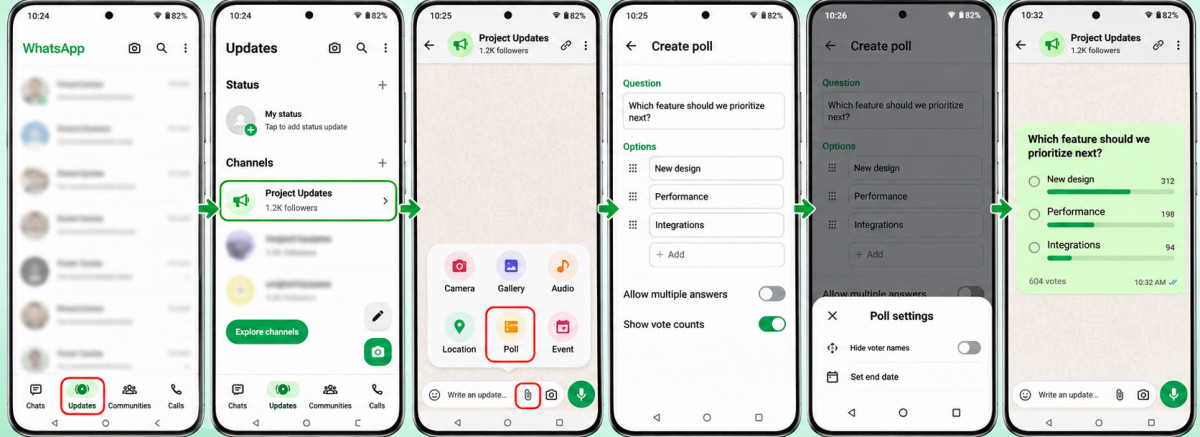
Channel polls allow administrators to collect responses from followers without opening a group discussion.
1. Open WhatsApp and select the Updates tab.
2. Open the channel you manage.
3. Tap the attachment icon and select Poll.
4. Enter the question and add up to 12 answer options.
5. Configure the available voting settings.
6. Publish the poll to the channel.
Channel polls can also include images as answer options, making them useful for comparing designs or other visual choices.
Unlike regular chat polls, published channel polls cannot be edited. Administrators must delete an incorrect poll and create a replacement. Followers can see voting results without seeing other followers' identities. Channel administrators, however, may view responder profile information.
Creating Polls in Communities
WhatsApp Communities organize related groups within one structure. Polls can be created in community groups and supported announcement conversations. To create one, open the relevant Community conversation, access the attachment menu, select Poll, add the question and options, and send it.
Poll visibility depends on where it is posted. A poll shared in one subgroup does not automatically collect votes from every Community member. Administrators should therefore select the conversation that reaches the intended participants before publishing.
How to Vote and View Poll Results
Participants vote by opening the poll and tapping their preferred option. When multiple answers are enabled, several choices can be selected.
Votes can be changed while voting remains open. Tapping an already selected option removes that selection, while selecting another answer in a single-choice poll replaces the previous vote.
How to See Who Voted
1. Open the conversation containing the poll.
2. Locate the poll message.
3. Tap View votes beneath the options.
4. Review the vote counts and available participant information.
Individual voting identities are not displayed when Hide voter names is enabled.
WhatsApp also provides a Polls search filter to help locate older polls without scrolling through long conversations.
What the Results Mean
The most popular answer is not automatically the preference of the entire group.
In a group of 40 members, a poll receiving 12 responses represents only those 12 participants. Even a clear winner may not reflect the preferences of the remaining members.
Multiple-answer polls require additional care because the total number of selections can exceed the number of voters. For important decisions, compare participation with the size of the intended audience rather than relying exclusively on the largest vote count.
How to Edit, Close or Delete a WhatsApp Poll
WhatsApp allows some changes after publication, but editing is limited.
Editing a Poll
Poll creators can edit the question within 15 minutes of creating the poll.
1. Open the conversation containing the poll.
2. Tap and hold the poll message, or open its message menu on desktop.
3. Select Edit.
4. Correct the question and save the changes.
This option is intended for correcting wording or mistakes. Existing answer choices and fundamental voting settings cannot be freely redesigned after publication.
A poll requiring substantial changes should be replaced with a new one.
Closing Voting
Creators can configure Set an end time before publishing. Voting automatically locks when the specified deadline arrives, while the existing results remain available.
Announcing that voting is finished in a message does not itself disable an open poll.
Deleting a Poll
Select the poll message and choose Delete.
Delete for me removes the poll from your chat view. Delete for everyone, when available, removes the message from the conversation for other participants under WhatsApp's deletion rules.
Deleting a poll is different from closing voting. Keeping completed polls visible can preserve a useful record of group decisions.
Are WhatsApp Polls Private?
WhatsApp's end-to-end encryption protects personal and group communications, but encryption does not mean that every poll is anonymous.
In ordinary group polls, the View votes screen can display which members selected particular answers.
The Hide voter names option changes this behavior by concealing individual selections, including from the creator.
For attendance tracking, identifiable responses may be necessary. For collecting personal preferences, hiding names may encourage more independent participation.
Channel polls operate differently. Ordinary followers cannot view one another's voting identities, but administrators may see names and profile photographs depending on users' privacy settings.
Polls should not be used to request confidential records or sensitive personal information. Even with hidden names, the question and available answers can reveal more information than participants expect.
Useful WhatsApp Poll Questions and Examples
A good poll contains a question that supports a clear action. Its choices should be distinct and detailed enough to prevent different interpretations.
| Purpose | Question | Suggested options |
| Workplace | Which time works best for our review? | 10 AM, 12 PM, 2 PM, 4 PM |
| Friends | Where should we meet? | Café, Restaurant, Park, Mall |
| Education | Which topic needs revision? | Algebra, Geometry, Statistics, Trigonometry |
| Events | Which venue should we book? | Hotel, Garden, Hall, Restaurant |
| Customer feedback | Which feature needs priority? | Offline access, Dark mode, Export, Notifications |
| Communities | Which activity should we organize? | Workshop, Sports, Cleanup, Fundraiser |
For casual conversations and group activities, fun poll questions can help spark discussions and encourage participation.
The voting configuration should reflect the purpose. For a venue decision, single-answer voting identifies each participant's preferred location. For availability, multiple answers can reveal which dates or times accommodate the most people.
An important limitation is that polls record choices rather than explanations. An option receiving the most votes establishes its popularity among respondents, but not the reasons behind that preference.
How to Get Better Poll Responses
Better poll results begin with the question rather than the number of participants. Several small decisions can prevent misleading outcomes.Creating polls that people actually answer also requires clear choices, relevant questions, and minimal effort from participants.
● Use neutral wording: Avoid phrases that praise or criticize an option. "Which meeting day works best?" is more balanced than "Should we choose the more convenient Friday schedule?"
● Avoid overlapping choices: Options such as Morning, Before lunch, and 10 AM–12 PM represent overlapping periods. Use clearly separated times instead.
● Include necessary alternatives: "None of these options" identifies unsuitable choices, while "No preference" identifies participants who are comfortable with any option.
● Match the voting method to the question: Availability checks benefit from multiple selections, whereas choosing one final venue generally requires single-answer voting.
● Set a meaningful deadline: Allow sufficient time for relevant members to participate without delaying a decision indefinitely.
Too many answer options can also divide support between similar choices. WhatsApp permits 12 options, but a shorter list is easier to evaluate when every choice represents a distinct alternative.
The creator should also consider who has not voted. A poll dominated by the most active group members may not reflect people who are less frequently online.
For decisions involving attendance, costs, or shared responsibilities, checking the participation count is as important as identifying the winning option.
Why WhatsApp Polls Are Not Working
Problems with polls usually relate to app versions, conversation permissions, connectivity, or the settings selected during creation.
| Problem | Possible reason | Recommended solution |
| Poll option missing | Outdated app or interface difference | Update WhatsApp and check the attachment menu |
| Cannot create group poll | Administrator-only messaging | Review group permissions |
| Poll fails to send | Connection problem | Check internet connectivity and retry |
| Votes not updating | Synchronization delay | Reopen the chat and check connectivity |
| Multiple answers unavailable | Single-answer voting enabled | Review the poll's voting configuration |
| Edit option missing | Editing period expired | Create a corrected poll |
| Voting unavailable | Poll deadline passed | Check whether voting has closed |
If the Poll option is missing on Android, check the paperclip menu. On iPhone, look inside the + menu.
For WhatsApp Web, refreshing the page or reconnecting the linked device can help resolve temporary synchronization problems.
If vote notifications are missing, review WhatsApp's notification permissions and check whether the relevant conversation has been muted. A feature appearing in one conversation but not another may also reflect differences between group, Channel, and Community permissions rather than an application error.
Final Verdict
Creating a WhatsApp poll is straightforward across Android, iPhone, desktop, groups, and Channels. The important part is configuring it correctly before sending.
Single-answer voting helps identify one preferred choice, while multiple-answer voting reveals broader availability or interests. Privacy controls and deadlines make results easier to manage.
For accurate decisions, use clear questions, distinct choices, and an appropriate voting period. Most importantly, check how many relevant participants responded before treating the winning option as the group's final decision.