

Table of Content
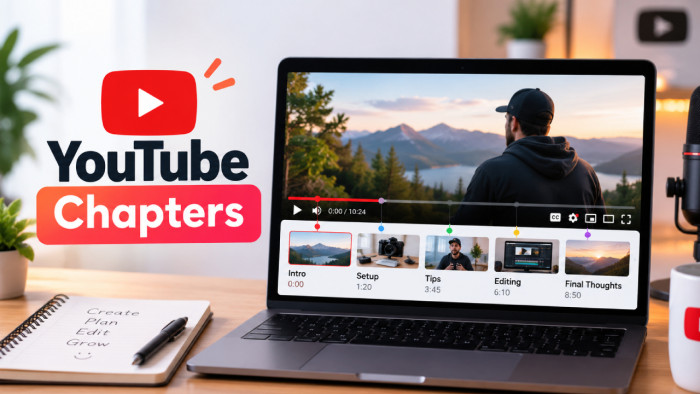
YouTube chapters split a video into labelled, clickable sections so your viewer can jump straight to the part they want. They take a few minutes to set up, they're easy to get wrong, and on any longer video they're one of the simplest upgrades you can make.
This guide walks you through all of it: what chapters are, why they're worth adding, the exact rules YouTube enforces, how to create them manually or automatically, and how to write them so people actually use them.
What Youtube Chapters Are
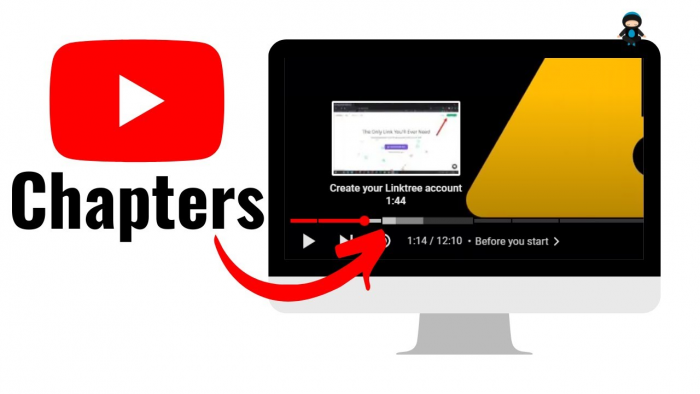
A chapter is a named section of your video. On the player, the progress bar breaks into separate segments the viewer can hover over and click, and the titles show up as a list below the video. In effect, you're giving your video a table of contents.
Before you go further, separate two things that look alike. A plain timestamp in your description simply creates a clickable jump to one moment, and it's been around for years. A chapter does more: when your timestamps follow YouTube's rules, the platform converts them into those visible segments on the bar and the labelled list beneath it.
Hold on to that distinction as you read on. Every chapter starts life as a timestamp, but a timestamp only becomes a chapter once you've met the setup rules covered below.
Why Chapters Matter
Chapters are worth your time because they help the viewer and the creator in the same moment, which is rare for a five-minute task. The viewer gets control over the video, and you get the benefits that follow from it.
From the viewer's side, the gains are immediate:
● They can jump straight to the part they came for instead of dragging the scrubber around, which matters most on tutorials, reviews, and anything long.
● Someone who'd have quit during a slow intro is more likely to stay, because skipping ahead is easier than leaving.
● The video becomes easier to navigate with a screen reader, or for anyone who finds a long unbroken clip hard to follow.
From your side as the creator, the payoff is quieter but it adds up:
● Watch time and retention tend to hold up, because people reach the parts they want instead of giving up partway through.
● Individual chapters can appear in search as key moments, giving one video several separate ways to be found.
Put simply, you're letting people use your video the way they'd use a well-organised page, and both sides come out ahead.
How Youtube Chapters Work
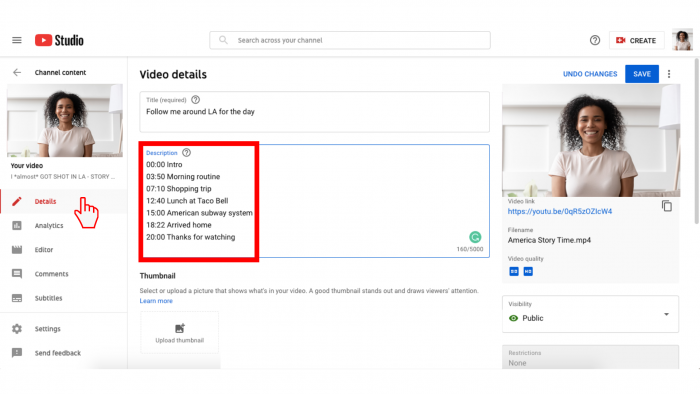
You don't add chapters through a special tool or a second upload. YouTube builds them by reading your video description. When it spots a list of timestamps that follows its rules, it converts them into the segments viewers see, automatically and with no extra step on your part.
That one detail explains almost everything else in this guide. Because the description is the source, each chapter is only as good as the line you type, and if the format is even slightly off, nothing appears at all and you get no error to tell you why.
The same mechanic works in your favour, though. Since chapters live in the description rather than inside the video file, you can add, rename, or fix them any time by editing that text, without re-uploading anything.
Setup Requirements
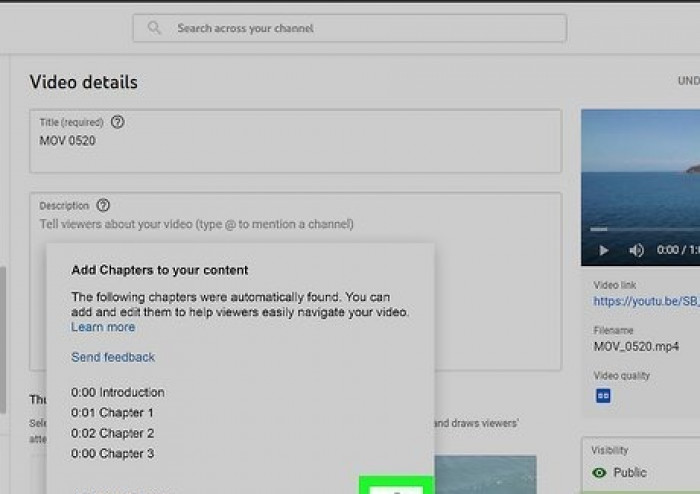
This is the step people get wrong, so follow it closely. YouTube will only turn your timestamps into chapters when every one of the conditions below is met. Miss even one and the feature fails quietly, with nothing to flag the problem.
| Rule | What it means in practice |
| First chapter at 0:00 | Your first timestamp must be 0:00. Start anywhere else and no chapters appear. |
| At least three timestamps | Three is the minimum. One or two behave as plain links and trigger nothing. |
| Ascending order | List your timestamps earliest to latest, never out of sequence. |
| Ten seconds minimum | Each chapter must run at least ten seconds, measured as the gap to the next timestamp. |
| Correct format | Write times as M:SS or H:MM:SS for example 0:00, 4:12, or 1:05:30. |
Two more conditions apply beyond the table. Your video has to be longer than a minute, and you shouldn't lean on the "Allow automatic chapters" option if you want full control over the result. On the generous side, there's no cap on how many chapters you can add or how long a title can be, so the only real limit is what genuinely helps your viewer.
Adding Chapters Manually
Adding chapters by hand gives you full control over where each break lands and what it's called, and once you know the pattern it takes only a few minutes. Follow these steps:
1. Open YouTube Studio and select the video you want, whether it's a new upload or one already live.
2. Scroll to the description box, which is where your chapter list will go.
3. Type your timestamps as a list, starting at 0:00, one per line, each followed by a space and a short title.
4. Save your changes and let the video finish processing.
Here's what that list looks like inside the description:
0:00 : Intro
0:45 : The problem
3:20 : Step-by-step walkthrough
8:10 : Common mistakes
11:30 : Final thoughts
Every line is just a timestamp, a space, then the label. Once you save and processing finishes, YouTube reads that block and the chapters appear on the player a short while later. If they don't show up, the cause is nearly always one of the setup rules rather than a glitch, so check your list against them before trying anything else.
Using Automatic Chapters
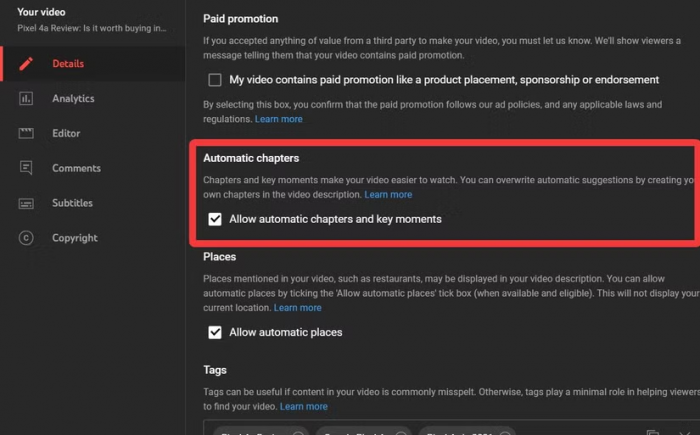
If typing timestamps by hand feels like too much, especially across a large back catalogue, you can let YouTube generate chapters for you. Look for the "Allow automatic chapters" option in each video's details; on new uploads it's switched on by default. When it's enabled and you haven't added your own list, YouTube tries to detect topic changes and build the chapters itself.
This is handy for clearing a backlog or if you're publishing constantly, but go in knowing its limits. Not every video qualifies eligibility depends on the content, and the feature won't run on channels with active strikes or on videos YouTube considers unsuitable.
The main drawback is accuracy. Automatic chapters are the platform's best guess at where your sections start, labelled in its wording rather than yours, so they rarely match a list you'd write on purpose. The fix is simple: the moment you add your own timestamps, they override the automatic ones, which is almost always the better choice on any video that matters to you.
Writing Good Titles
Timestamps handle the mechanics; your titles do the real work. Treat each chapter title as a tiny headline with one job telling a scanning viewer whether this is the part they want. A vague label throws that chance away.
Aim for titles that are short, specific, and written in your viewer's words rather than your own production shorthand. "Step 1" says nothing; "Setting up the camera" tells them exactly what's there. A little relevant keyword use helps people find the video, but overdo it and it reads as spam, which costs you more than it gains.
| Weak title | Stronger version |
| Intro | What this guide covers |
| Part 2 | Installing the software |
| Tips | Three settings most people miss |
| Conclusion | Final checklist before you publish |
The rule of thumb is to describe the content, not its position. "Part 2" only says where it sits in your video; "Installing the software" says what the viewer gets. Write each title to answer one question "what will I see if I click this?" and you'll naturally write the ones that get clicked.
Where To Break Sections
Deciding where one chapter ends and the next begins is a judgment call more than a rule. Your goal is to break the video the way a viewer actually thinks about it, not at neat time intervals that mean nothing to them.
A reliable test is to picture someone who's already watched once and wants to jump back to a specific part. Where would they expect to land? Those natural seams are a new topic, a new step, a clear change in what you're doing are your chapter breaks, and the cleanest chapters each cover a single idea before handing off to the next.
How many you need scales with length. Under five minutes, three or four chapters is usually plenty; for a ten-to-twenty-minute video, aim for somewhere between five and ten. There's no maximum, but too many breaks slice the bar into slivers nobody uses, and too few defeat the point. When you're unsure, choose fewer, well-placed breaks over a long list of tiny ones.
Chapters And Discovery
Chapters quietly help your video get found, and it's the benefit creators most often miss. Because each chapter is labelled, YouTube and Google can read those labels as extra clues about what your video contains, and they'll sometimes surface a single moment directly in search as a key moment.
That effectively turns one video into several front doors. A viewer searching a narrow question might land straight on the ninety-second chapter that answers it, instead of skipping past because your main title didn't match their exact phrasing. The clearer your chapter titles, the more of those doors you leave open.
Keep it in proportion, though. Chapters won't rescue a video nobody wants, and they're no substitute for a strong title and thumbnail. But on content that genuinely covers several things, good chapter labels give it more surface area to be discovered and they do it at no extra cost.
Common Mistakes
When your chapters don't show up, it's almost always one of a few small errors, and each is quick to fix once you know where to look:
● Your first timestamp isn't 0:00. This is the number-one reason chapters never appear; the list has to start at the very beginning.
● You have fewer than three timestamps. Two will act as ordinary links and nothing more; three is the minimum that switches the feature on.
● A chapter is shorter than ten seconds. If two timestamps fall less than ten seconds apart, YouTube rejects the whole set, not just that segment.
● Your format is slightly off. A missing colon, a stray character, or writing 45 instead of 0:45 is enough to break everything quietly.
● Your timestamps are out of order. They have to climb from earliest to latest, with no jumps backward.
Since YouTube never warns you when a rule is broken, your fix is nearly always the same: reread the description against the requirements, line by line. And remember that one bad entry disables chapters for the entire video, not just the segment that's wrong.
Editing And Updating
A useful thing about chapters is that nothing is ever locked in. Because they live in your description, you can change them whenever you like, fix a typo, rename a section, or rebuild the whole list without touching the video file. The update goes live after a short processing window.
This is also why going back to older videos pays off. Anything you published before you started using chapters is sitting there without a table of contents, and adding one costs only a few minutes on content that's already made and already earning views.
For longer videos, or ones still pulling steady traffic, retrofitting chapters is some of the easiest improvement work you can do. You're not creating anything new; you're making something that already works easier to watch, which is usually a better use of an hour than people expect.
Final Tips
The best results come from making chapters a habit rather than an afterthought, and a few simple practices get you there. Build your chapter list while you're still editing, when the structure of the video is fresh in your mind, instead of trying to reconstruct it afterward. Write every title to answer one plain question: what will I get if I click here? and cut anything vaguer than that. Start at 0:00 every single time, since that's the rule most responsible for chapters failing to appear. And when you have a spare few minutes, go back and add chapters to your strongest older videos first, where the work pays off against views you're already getting.
Done consistently, chaptering is one of the highest-return, lowest-effort habits on the platform. It costs a few minutes per video and quietly improves navigation, retention, and discovery all at once which is about as close to free as creator work ever gets.