

Table of Content
Video editing software has evolved dramatically over the past decade. What once required expensive hardware and years of training can now be done on a personal laptop with relatively intuitive tools. Yet the choice of editing software still shapes how creators approach their work.
Two of the most widely discussed tools in this space are Wondershare Filmora and Adobe Premiere Pro. Both platforms allow creators to edit videos, add effects, build timelines, and export content for YouTube, social media, or professional productions. But their philosophies are very different.
Filmora focuses on accessibility and fast results. Premiere Pro is designed for precision, flexibility, and professional production pipelines.
Rather than comparing them through typical feature lists, it is far more useful to understand how each tool behaves in real editing situations. The following comparison explores how these editors perform across common scenarios that video creators encounter every day.
The First Editing Experience
The first time someone launches a video editor often determines whether they continue learning or abandon the tool entirely. In this situation, Filmora and Premiere Pro create very different first impressions.
Opening Filmora feels almost like opening a modern consumer app rather than a traditional editing suite. The interface is visually clean, with large icons and clearly labeled sections for media, effects, transitions, titles, and audio. The timeline sits at the bottom, and most tools are accessible through simple drag-and-drop actions.
For a beginner, this design reduces friction immediately. A new user can import clips, drop them into the timeline, trim footage, and export a basic video within minutes without needing to study tutorials or understand professional editing terminology.
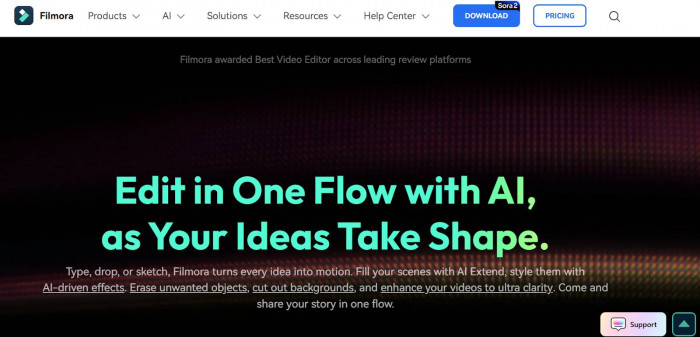
The learning curve is intentionally shallow. Filmora is built around guided workflows, meaning the software nudges users toward common editing actions instead of exposing every possible technical control. Many tasks that would require multiple steps in professional software are condensed into a single click.
Opening Premiere Pro for the first time creates a completely different experience.
The interface resembles professional production software rather than a beginner-friendly app. Multiple panels appear across the screen, including the project window, source monitor, program monitor, timeline panel, media browser, and effects controls. Each of these panels contains dozens of tools and parameters.
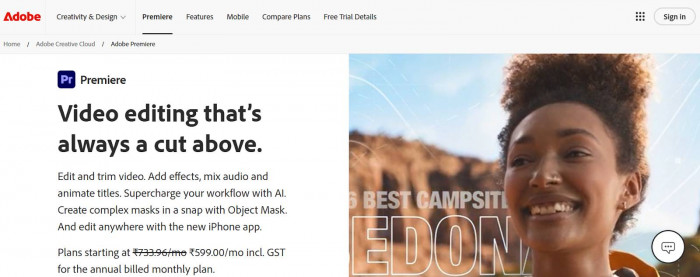
For someone unfamiliar with professional editing environments, the layout can feel intimidating. Nothing about the interface immediately explains what to do first.
Even basic tasks require understanding concepts such as sequences, tracks, bins, and playback monitors. Premiere Pro assumes that the user either has editing experience or is willing to invest time learning the workflow.
However, that complexity exists for a reason. Premiere Pro is designed to support everything from short YouTube clips to full feature films. The interface exposes deep levels of control that professional editors rely on.
In simple terms, the first editing experience often looks like this:
Filmora feels welcoming and immediately usable.
Premiere Pro feels powerful but requires patience and learning before it becomes comfortable.
Editing a Simple YouTube Video
Imagine a creator recording a typical YouTube video. The task involves importing clips, trimming mistakes, adding background music, inserting transitions, and exporting the final video.
This is where Filmora’s workflow shines.
In Filmora, the process is extremely direct. After importing footage, clips can be dragged onto the timeline and trimmed using simple handles. Transitions appear in a library where they can be previewed and dropped between clips. Music and sound effects are equally easy to add, often through built-in asset libraries.
Most adjustments happen through visual sliders or quick preset options. Color grading, audio balancing, and titles are simplified into easy controls that beginners can understand instantly.
The export process also reflects this simplicity. Filmora offers preset export options optimized for platforms like YouTube, Instagram, and TikTok, meaning users do not need to worry about bitrate settings or codec configurations.
Premiere Pro approaches the same task with a more traditional editing workflow.
Importing media requires creating a project and organizing clips inside bins. Footage is often previewed in the source monitor before being placed into the timeline. Editors then cut and arrange clips using keyboard shortcuts or razor tools.
For experienced editors, this workflow is actually faster and more precise. But for beginners, it can feel like extra steps.
Adding transitions and effects also involves navigating the effects panel and adjusting parameters inside the effects control window. While this allows deeper customization, it takes more time to learn.
In short, for simple editing tasks, the experience tends to look like this:
Filmora prioritizes speed and convenience.
Premiere Pro prioritizes control and editing precision.
For creators producing frequent social media content, that difference can significantly affect daily workflow.
Working on a Professional Project
Editing becomes much more demanding when projects grow beyond simple videos.
Consider a scenario where a creator is editing a documentary, commercial advertisement, or short film. These projects often involve multiple camera angles, complex audio layers, color grading, and advanced editing techniques.
In these situations, the limitations of beginner-focused software begin to appear.
Filmora can handle moderately complex projects, but its timeline architecture is simpler. Track management, nested sequences, and advanced editing tools are less flexible than those in professional editing software.
While Filmora provides many visual effects and templates, the ability to fine-tune every element is somewhat limited. For example, editors working with precise motion graphics or layered effects may find fewer customization options.
Premiere Pro was built specifically for these complex scenarios.
Its timeline system supports large numbers of tracks, allowing editors to layer video, audio, graphics, and adjustment layers in sophisticated ways. Sequences can be nested, rearranged, and reused across projects.
The software also provides professional tools for tasks such as:
1. Multi-camera editing
2. Advanced color correction
3. Audio mixing and keyframe automation
4. Frame-accurate editing adjustments
Premiere Pro also integrates with other Adobe tools such as Adobe After Effects and Adobe Audition, allowing editors to move seamlessly between video editing, motion graphics, and audio post-production.
For professional editors or filmmakers, that ecosystem becomes extremely valuable.
The result is that Premiere Pro scales far better when projects become complex or collaborative.
Effects, Transitions, and Visual Creativity
Creative tools are often what attract new editors to video software. Visual effects, animated titles, and cinematic transitions can dramatically change the look of a video.
Filmora approaches creativity through a template-driven model.
The platform includes a large library of pre-built transitions, animated titles, overlays, and visual effects. These elements are designed to work instantly when applied to a timeline clip. Creators simply drag an effect onto the timeline, and the result appears immediately.
For social media creators, this approach is extremely convenient. It allows visually appealing videos to be produced quickly without needing technical expertise.
Filmora also includes themed template packs that automatically generate intros, slideshows, and promotional video formats.
Premiere Pro takes a more customizable approach.
While it includes built-in effects and transitions, many professional editors prefer creating their own animations using keyframes and motion controls. This allows extremely precise visual results but requires more effort and technical understanding.
The real creative power of Premiere Pro appears when it connects with After Effects. Through dynamic linking, editors can create complex motion graphics and advanced visual effects without leaving the editing workflow.
The contrast between the two platforms often looks like this:
Filmora focuses on ready-to-use visual assets.
Premiere Pro focuses on building custom visuals from scratch.
Neither approach is inherently better. The right choice depends on how much creative control the editor needs.
Performance and System Requirements
Video editing performance depends heavily on hardware. Rendering, playback, and exporting all place significant demands on a computer’s CPU, GPU, and memory.
Filmora is designed to run efficiently on mid-range and even lower-end computers. Because the software prioritizes simplified workflows and template-based editing, it often performs smoothly on laptops that struggle with heavier editing software.
For beginners using consumer hardware, this can make a noticeable difference. Timeline playback tends to remain smooth even when applying effects or transitions.
Premiere Pro is significantly more demanding.
The software is built for professional editing environments where high-resolution footage, large project files, and multiple layers of effects are common. As a result, it performs best on powerful computers equipped with strong GPUs and large amounts of RAM.
On lower-end systems, Premiere Pro can experience slower playback, longer rendering times, and occasional stability issues during complex projects.
However, on high-performance workstations, Premiere Pro becomes extremely efficient. Its rendering engine and hardware acceleration allow editors to process large projects quickly.
Long editing sessions also highlight a philosophical difference.
Filmora is optimized for shorter projects and faster turnaround times.
Premiere Pro is designed for large editing sessions that may span hours or even days.
Pricing and Subscription Models
Pricing is another factor that strongly influences which editing software creators choose.
Filmora offers flexible pricing options that include both subscription plans and lifetime licenses. Premiere Pro, on the other hand, follows the subscription model used across the Adobe Creative Cloud ecosystem.
| Software | Monthly Price | One-Time Purchase | Free Trial |
| Wondershare Filmora | ~ $9.99 / month | Yes (lifetime license available) | Yes |
| Adobe Premiere Pro | ~ $22.99 / month | No | Yes |
For many independent creators, Filmora’s lifetime purchase option is appealing because it eliminates ongoing subscription costs.
Premiere Pro’s subscription includes continuous updates and integration with the broader Adobe ecosystem, which many professionals consider worth the cost.
What Users Actually Say
User reviews often reveal how software behaves outside marketing claims.
Filmora users frequently praise the software for its accessibility. Many creators mention that they were able to begin editing immediately without prior experience. The drag-and-drop interface and large library of built-in assets receive particularly positive feedback.
Common praise includes:
● Easy learning curve
● Fast editing workflow
● Large selection of built-in effects
However, some users note limitations as their editing skills grow. They may eventually outgrow Filmora’s editing flexibility or require tools that are only available in professional software.
Premiere Pro reviews tell a different story.
Professional editors often praise the software’s flexibility and deep control over editing workflows. Many filmmakers, video agencies, and production teams rely on it because it integrates with the broader Adobe production ecosystem.
Typical praise focuses on:
● Professional editing capabilities
● Precise timeline control
● Integration with other creative tools
The most common complaint about Premiere Pro is its complexity. Beginners frequently describe the software as difficult to learn at first.
This difference leads to a pattern that appears repeatedly among creators.
Many beginners start with Filmora to learn editing fundamentals.
As their projects become more complex, some eventually transition to Premiere Pro for greater control.
Which Editor Ultimately Fits Your Workflow?
Both Wondershare Filmora and Adobe Premiere Pro succeed because they solve different problems for different kinds of creators.
Filmora shines when speed, simplicity, and accessibility matter most. It allows beginners and casual creators to focus on storytelling without getting lost in technical details. For YouTubers, educators, marketers, and social media creators who want to produce videos quickly, the streamlined workflow can make editing far less intimidating.
Premiere Pro, on the other hand, becomes increasingly valuable as projects grow in complexity. Its deep timeline control, professional editing tools, and integration with the wider Adobe ecosystem make it a natural choice for filmmakers, production teams, and editors who need precision and scalability.
In practice, many creators move through both worlds. They start with Filmora to learn the basics of editing, then transition to Premiere Pro once their projects demand greater control and creative flexibility.
The right choice ultimately depends on where you are in your editing journey and how far you plan to take your video production.